

FrameRoost on TV
The FrameRoost app, a Tizen app, turns a Samsung TV into a big-screen viewer for your galleries, public and private. Connect the TV to your site once with a code, then browse a gallery photo by photo with the remote, or play it as a slideshow and leave it running like a digital photo frame.
How do I connect a TV?
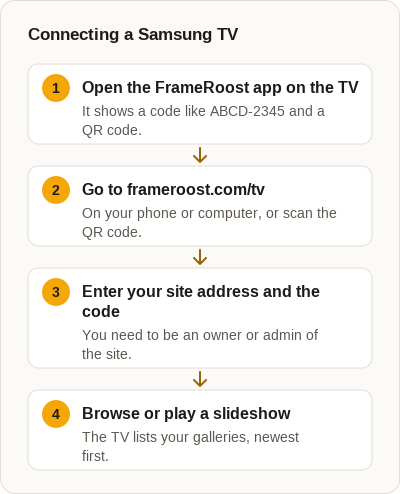
Section titled “How do I connect a TV?”You connect a TV to your site once, with a code. There’s nothing to type on the TV itself. You need to be an owner or admin of the site.
- Open the FrameRoost app on the TV. It shows a code, like
ABCD-2345, and a QR code. - On your phone or computer, go to frameroost.com/tv — or just scan the QR code, which fills in the code for you.
- Enter your site’s address (for example
yournameoryourname.frameroost.photos) and the code, then Continue. Your own domain works too, if you’ve connected one. - Sign in to your site if you’re asked, give the TV a name if you like (“Living room”), and click Connect TV.
Within a few seconds the TV shows your site’s galleries. Codes last 15 minutes; if one runs out, the TV shows a new one on its own.
You can also connect a TV straight from your admin: open TVs and enter the code there.
About the code:
- The code is 8 characters, letters and numbers. It never uses vowels or the easily confused 0, O, 1, I and L.
- Capitals and the dash don’t matter:
abcd2345works as well asABCD-2345. - A name is optional, up to 100 characters. Leave it empty and the TV is listed by its model, such as “Samsung” followed by the model number.
On the TV
Section titled “On the TV”The gallery list shows your galleries, public and private, newest first, each with its first photo and how many photos it holds. Your logo, or your site name, is at the top.
| Where | What the remote does |
|---|---|
| Gallery list | Arrows move, OK opens a gallery, ▶ starts its slideshow, Back exits |
| A gallery | OK on a photo shows it full screen, Play slideshow (or ▶) starts the slideshow, Back returns to the list |
| Full screen | ◀ ▶ previous and next, OK or ⏯ pause and play, ▲ ▼ show the caption, Back returns |
A slideshow keeps going until you stop it, and keeps the TV’s screen saver from kicking in. It picks up photos you add to the gallery along the way, so a gallery on the living-room TV can grow without you touching the TV. Each time the slideshow reaches the end, it checks the gallery again if it’s been 15 minutes or more since it last did: new photos join in, photos you took out drop away, and if the gallery is now empty the slideshow stops.
The TV shows the galleries you make, public and private — make one (for example “Living room favorites”) under Galleries in your admin and it appears on the TV. With no galleries yet, the TV says so and checks again every 30 seconds, so a new one shows up on its own. Photos are shown as their web-sized display copies, with your watermark if you use one — unless you’ve turned it off for that gallery (Show my watermark), in which case the TV shows them clean too.
Slideshow settings
Section titled “Slideshow settings”Settings (top right of the gallery list) sets how long each photo stays up (5 seconds to 5 minutes), whether the slideshow plays in order or shuffled, and whether captions show during it. Use ▲ ▼ to pick a setting, ◀ ▶ to change it and Back when you’re done.
| Setting | Choices | Starts at |
|---|---|---|
| Time per photo | 5, 10, 15 or 30 seconds; 1, 2 or 5 minutes | 10 seconds |
| Slideshow order | In order or Shuffled | In order |
| Captions during slideshow | Show or Hide | Show |
A shuffled slideshow starts with the photo you picked, then plays the rest in random order. The settings are kept on each TV, so the bedroom TV can shuffle slowly while the living-room one plays in order. The bottom of the Settings screen shows which site the TV is connected to.
How do I disconnect a TV?
Section titled “How do I disconnect a TV?”- From your admin: open TVs and click Disconnect next to it.
- From the TV: open Settings, choose Disconnect this TV and press OK twice — the second press confirms.
Either way the TV stops showing your galleries straight away and goes back to showing a code. Do this before you sell or give away a TV.
Good to know
Section titled “Good to know”Any owner or admin of your site can connect and disconnect TVs, and the TVs page shows who connected each one and when it was last used. “Last used” is approximate, to within about five minutes.
Removing someone from your team doesn’t disconnect the TVs they connected. Disconnect those separately if you need to.
A TV belongs to one site at a time. To move it to another site, disconnect it and enter its new code on the other site.
The TV app works with Samsung smart TVs. Other TV brands may follow.
If something’s not right
Section titled “If something’s not right”“That code doesn’t match a TV waiting to connect.” Check the code against the TV. If it’s run out, the TV is already showing a new one.
“Can’t reach FrameRoost. Check the TV’s internet connection.” The TV keeps trying on its own, so once the connection is back it carries on.
“Too many codes requested from this network.” Each network can ask for up to 30 codes an hour. The TV waits a minute and tries again.
Some photos are skipped in a slideshow. A photo that won’t load is passed over. If none load, the TV says so and pauses.
The TV is back to showing a code. The TV was disconnected, from the admin or the TV. Enter the new code to connect it again.