
Getting started
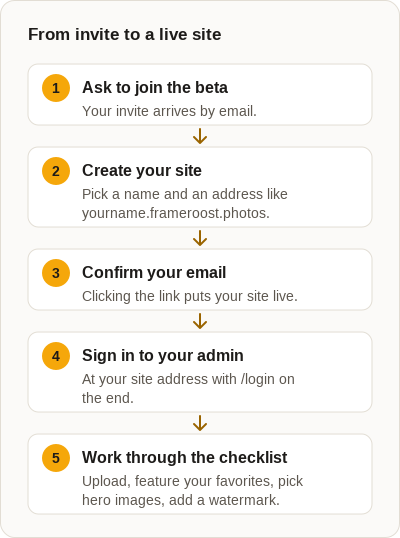
To get a FrameRoost site, ask to join the beta, sign up from your invite and confirm your email. Then sign in to your admin and work through the Getting started checklist: upload photos, feature your favorites, pick hero images and add your watermark. Your site goes live as soon as you confirm your email.
1. Get an invite
Section titled “1. Get an invite”FrameRoost is in an invite-only beta. Ask to join and you’ll receive an email with your invite when the beta begins. The link in that email opens the signup page with your invite code already filled in.
2. Create your site
Section titled “2. Create your site”On the signup page, fill in:
Your name, email and a password (at least 8 characters). You’ll use these to sign in. Your name can be up to 100 characters.
Site name — what visitors see in your site’s header, browser tab and link previews. You can change it later. Up to 200 characters.
Address — your site lives at address.frameroost.photos. Use lowercase letters, numbers and hyphens.
Choose carefully: you can’t change the address yourself later (you can always add your
own domain on top of it).
The address must be 3 to 63 characters (63 is the DNS limit for one part of a web address) and start and end with a letter or number. As you type a site name, the
address fills itself in from it, keeping only letters and numbers: “Jane Doe Photography” becomes
janedoephotography. Edit it if you’d like hyphens or something shorter; once you’ve changed it, it stops
following the site name. Under the field you’ll see whether the address is available.
A few addresses are kept for FrameRoost itself, such as www, admin, blog, help and docs.
Complete the “verify you’re human” check (Cloudflare Turnstile) and click Create my site. Creating a site means you agree to the Terms of service and Privacy policy.
3. Confirm your email
Section titled “3. Confirm your email”We email you a confirmation link. Your site stays offline until you click it, and an unconfirmed signup is removed after 7 days, which frees its address again.
The page you land on after signing up says where the link went. The link works for a day. Clicking the link puts your site live, signs you in and opens your admin’s Photos page.
Nothing there? Check your spam folder, or click Send it again on that page. Closed it already? Go to your site’s
address with /login on the end and sign in: you’ll be offered Send me a new link.
4. Sign in to your admin
Section titled “4. Sign in to your admin”Your admin lives on your site’s own address: go to https://address.frameroost.photos/login and sign in. Bookmark
it — you always sign in on your site’s address, even after you connect your own domain.
Forgot your password? Use Forgot password? on that sign-in page.
5. Work through the checklist
Section titled “5. Work through the checklist”The Photos page shows a short Getting started checklist until you’ve done each step:
- Upload your photos — as many at once as you like.
- Feature the ones visitors should see. Click the heart on a photo to feature it.
- Pick hero images for your home page: click the wallpaper icon next to the heart.
- Add your watermark — your own PNG or simple text, built into every photo visitors see.
- Make the site yours — add your logo and a few words about yourself in Settings.
Your public gallery shows featured photos only, so nothing goes public until you choose it. Your home page opens on one of your hero images, chosen at random each visit. See Photos.
New sites start with no watermark, so until you add one your photos appear without it. Choose Off if you’d rather not use one. Photos you’ve already uploaded are updated automatically, so it doesn’t matter whether you add your watermark before or after uploading. See Watermark.
Each step ticks itself off as soon as it’s true of your site: one photo uploaded, one featured, one hero image, a watermark set (or Off chosen), and a logo or some About text. The checklist goes away once all five are done. Hide puts it away sooner, in that browser. Its view your site link opens your site the way visitors see it.
New sites start on the Free plan (2 GB, no video). During the beta (until at least February 28, 2027) every plan is free: open Billing in your admin and pick the one you want — no card needed. See Plans & billing.
Your FrameRoost site is now set up: share your address and you’re live.
What will visitors see on my site?
Section titled “What will visitors see on my site?”Your site’s menu has Home, Gallery, Videos and Contact. About joins them once you’ve written something for it in Settings.
Home opens on one of your hero images. If you haven’t picked any yet, it uses a random featured photo instead. Below it, Recent Work shows up to eight featured photos, most recently uploaded first.
Gallery shows your featured photos, in a fresh random order on each visit.
Videos shows the videos you’ve featured. On a new Free site it’s empty, since video comes with the paid plans. See Videos.
Example: your first evening
Section titled “Example: your first evening”Say you shoot birds and have 60 favorites from the spring migration. Sign up as “Marsh Light Photography”, which
suggests the address marshlightphotography; you shorten it to marsh-light. Confirm your email, and you land on
your Photos page.
Upload the 60 photos with the tag “migration”. Feature the 25 you’re proudest of and make three wide shots hero
images. Add a text watermark, then your logo and a short About. The checklist is done and goes away. Open view
your site and send marsh-light.frameroost.photos to a friend.
Troubleshooting
Section titled “Troubleshooting”“There’s already a site at …” or “… is reserved” — pick another address.
“There’s already a FrameRoost account with this email.” Each email can sign up one site for now. Sign in to that site instead, or use a different email.
“That invite code isn’t valid.” Use the link from your invite email, which fills in the code for you.
“Please confirm your email before logging in.” Find the confirmation email and click its link first, or click Send me a new link under the message.
“This confirmation link is invalid or has expired.” Links work for a day. Enter your email on that page and click Send me a new link. Forgot password? on the sign-in page works too: setting a new password confirms your email and puts your site live.
The sign-in page at app.frameroost.com says your account isn’t part of the FrameRoost team. That page is for
FrameRoost staff. Sign in on your own site’s address, with /login on the end.
Tell us what you think
Section titled “Tell us what you think”You’re using FrameRoost early, and your feedback shapes what gets built next. Use Send feedback in your admin any time — it comes straight to us.